We always store a consent-preference cookie so we can honor your choice. Essential cookies enable forms, admin login and session-based protections. Aggregated technical traffic metrics are collected server-side without analytics cookies. View Cookie Policy
Cookie Preferences
Essential Cookies
Required for forms, admin login, CSRF protection and other session-backed functions. If disabled, public pages remain available but stateful actions are blocked.
Analytics Cookies
Optional analytics tools stay off until you explicitly enable them. Technical traffic metrics remain aggregated server-side and do not rely on analytics cookies.
Marketing Cookies
Used to track visitors across websites and display relevant content. We currently do not enable marketing cookies.
Rejecting essential cookies keeps navigation available, but forms, admin access and other session-based functions will remain disabled.
Your consent preference is retained for 2 years so we can honor and document your choice. You can change it any time from the footer.
User manual
User manual
How to use ControlRoom, section by section, with concrete examples.
The promise, the four connected sections, the two services and how to read this manual.
The promise
Spot criticalities and missing information in your project, verify the data that explains them, and share the picture as a PDF or PowerPoint.
Overview: gathers the signals of all the other sections into a list of concrete decisions.
Plan: phases, activities and milestones, with planned and actual dates.
Kanban: the week's work, column by status.
Budget and costs: budget, actuals, commitments and margin.
Two services work on top of the sections: the AI review, an assisted reading of the data that points out criticalities with their evidence, and the export, which turns the project into a PDF report or PowerPoint slides with the real data. Below, the demo project's Overview.
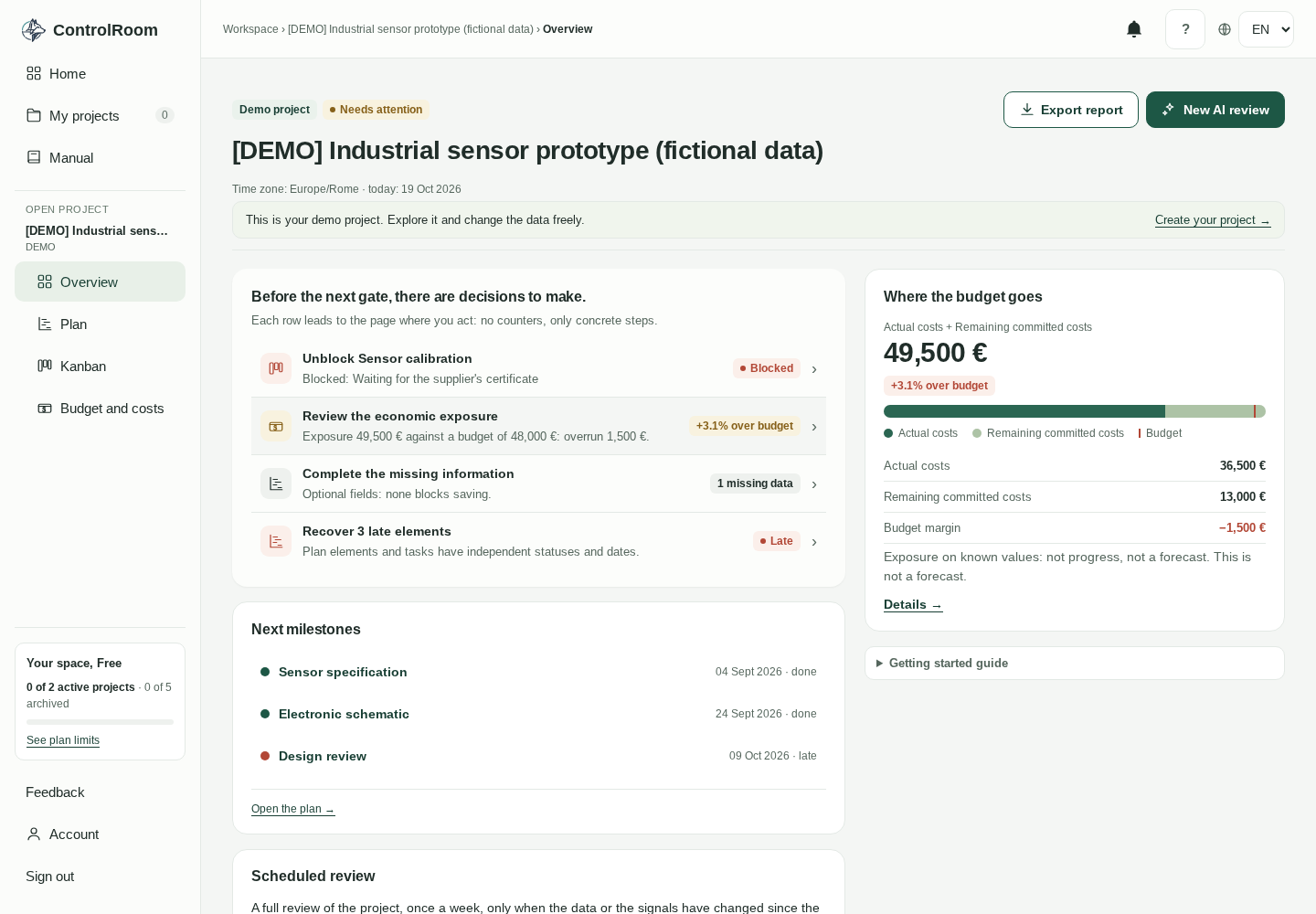
Demo project, fictional data: decision rows, budget bar with its marker (36,500 € actuals + 13,000 € committed remaining), next milestones.
This manual is a public page: you open it from the rail entry “Manual” or from the “?” popover in the top right corner; it needs no sign-in and it does not move the data retention clock. The contents list is numbered, carries each chapter's icon and follows your reading (scrollspy); at the bottom, “← Projects” takes you back to your projects.
The icons are the app's real ones (RailIcon): in the contents list every chapter carries the icon of its rail entry — Home, Projects, Manual, Overview, Plan, Kanban, Budget and costs, AI review, Export, Account. In the text, interface elements are named as you see them: the bell for notifications, the “?” for the help popover, the IT/EN flags for the language, the eye for showing the password. Never generic glyphs.
Free plan: 2 active projects, 5 archived, an uncounted and unarchivable demo; 2 valid AI reviews per week; 3 PDF or PPTX exports per account, one-time. Retention: workspace after 6 months without qualifying activity, account after 12 months; Europe/Rome time zone; Italian and English UI. ControlRoom is an individual account, not an ERP or a multi-user tool: the data is what you enter.
Account, sign-in and the app structure: rail, topbar, language, updates, feedback and session expiry.
Enter your full name (max 120 characters), email and password: under the password field, the hint “At least 12 characters, no leading or trailing spaces.”
Confirm the password: if the two do not match, the error reads “The passwords do not match.”
Press “Start free” and you land on /check-email. If you already have an account, the link is “Already have an account? Sign in”.
The verification email shows your address ({email}) and contains a link valid for 24 hours and single-use: it is consumed on first use. If it does not arrive, use “Send the link again”. After the click you see “Email verified”, or “The link is invalid, expired or already used” with the “Go to sign in” button.
On the sign-in page every password field has its own show/hide eye: the password is hidden by default, the button is 44px and carries the aria-label “Show/Hide password”; the creation hint appears only where you set a new password. Errors get a dedicated line. Below the form you find “Forgot password?”, “No account yet? Start free” and “Can't sign in any more?”.
The password reset link is valid for 30 minutes. The confirmation is deliberately generic, so registered addresses are not revealed: “If the account exists, you will receive an email with the link.” In the reset you set the new password and confirm it; at the end: “Password updated. Sign in again with the new password.”
If you cannot get in even with the reset, there is the public access recovery page, reachable from sign-in, forgot password and reset. The warning is explicit: “Do not enter passwords, tokens, documents or confidential project details.”
The form asks only for email and message (max 2000 characters, with counter). On a confirmed send you receive a reference: “Keep this reference.”
If you send too often, “Too many requests: wait a few minutes”: the text stays in the form. Account existence is never confirmed: a person reviews the request.
The rail on the left is the map of the app. From top to bottom:
Hamburger: opens the session menu and closes by itself on page change, with Esc or by clicking the scrim.
Brand, Home, My projects (with the active projects badge) and Manual.
“Open project” block: the current project's name, code and archived tag, with four links under the user labels Overview, Plan, Kanban, Budget and costs — the internal URLs differ, the labels rule.
“Your space, Free” card: “{n} of 2 active projects · {n} of 5 archived”, a bar and the “See plan limits” link to Home.
Account (opens /account/access), Admin (only for platform administrators, checked by the server) and, at the bottom, Sign out.
The demo project Home: rail and topbar are the frame of every page in the app.
The topbar shows the breadcrumb: “ControlRoom” / “Projects”, and inside a project “Workspace › {project} › {section}”. Next to it, the notification bell — the AI review chapter covers its details — and the “?” button.
The “?” opens four quick tips: in the Plan, dates are edited in the Gantt or in the item drawer, and Gantt changes stay a draft until you press Save (Cancel discards them); in the Kanban, the status is changed from the card's detail; in the Overview, signals lead to the page where you resolve them and the economy shows known values, not forecasts; in the Costs, Actuals and Commitments are separate ledgers. The Plan tip still repeats the popover's old wording (“in the cells”): there is no table to fill in — dates are really edited in the Gantt or in the item drawer, as the Plan chapter explains. At the bottom, “Open the full manual →”. The same “?” appears in the Plan toolbar.
The language switch sits in the topbar, with the SVG flags and the aria-label “Language”. The choice is remembered: on first visit it follows the browser language and it is also saved as the account preference — and it is the language of scheduled reviews: the last saved one wins.
A check every 60 seconds flags new versions: “New version available: reload the page to update the interface.”, with Reload or Close. There is no auto-reload, to protect unsaved drafts.
“Feedback” is always in the rail. Pick the category Problem or Suggestion and write the text (max 2000 characters, counter {n}/{max}); the warning reminds you: “Do not enter passwords, tokens or confidential project details.” The receipt (“Receipt: …”) appears only when the send is confirmed by the server, and “Send another report” opens a new form. On error the text stays where it is.
When the session expires, the app shows “Sign in again” with “The session has expired. Temporary inputs in this tab were not saved.” Unsaved drafts follow precise rules:
The new-project name, the plan item, the gantt save, the task and the cost live only in the tab's memory, keyed to the account: never in web storage.
They are lost on logout, on a different account or on reloading the page: the browser's beforeunload warning is the only guard.
After signing back in, returnTo brings you where you were: with the same account you see “We restored your earlier unsaved input. Review it and press Save.”; with a different account you land on the project list.
Create the project: it starts empty, with the single “General” phase. With your first real project the contextual tutorial starts, in four steps: “Read the cockpit” (that is the Overview page, and it completes itself as soon as you open it), add an activity to the Plan, a task to the Kanban, a cost or a commitment. You can skip it and restart it from Account › Tutorial.
On your first visit to Projects the demo is created automatically (“Preparing the demo…”): it uses your account language, holds fictional data and is freely editable. It does not count against the quotas and cannot be archived; you can request an AI review on it, but the scheduled review is not available.
If you are unsure where to look, here is the map:
Home → the daily status: project summary, AI quota, notifications, last activity, tutorial.
My projects → the list of active, archived and demo.
Account → Access (and from there Preferences, Tutorial, Data and privacy).
Admin → platform administrators only.
Manual → this manual.
During the initial session check you see “Loading…”.
ControlRoom Free is an individual account: no multi-user collaboration and no sharing between accounts. Unsaved drafts live only in the open tab: close it or switch account and they are gone. For the same reason the app never reloads itself in front of an open draft, and access recovery never confirms that an account exists.
The daily workspace status: projects, AI quota, notifications, last activity and tutorial.
Home is the at-a-glance status of the workspace: five cards that summarise what matters, with links to the pages where you work. You read it, you do not edit it: work happens inside the projects. You reach it from the rail item "Home", or from the "See plan limits" link on the Projects page. After signing in you still land on Projects: Home is an optional stop, not the entrance.
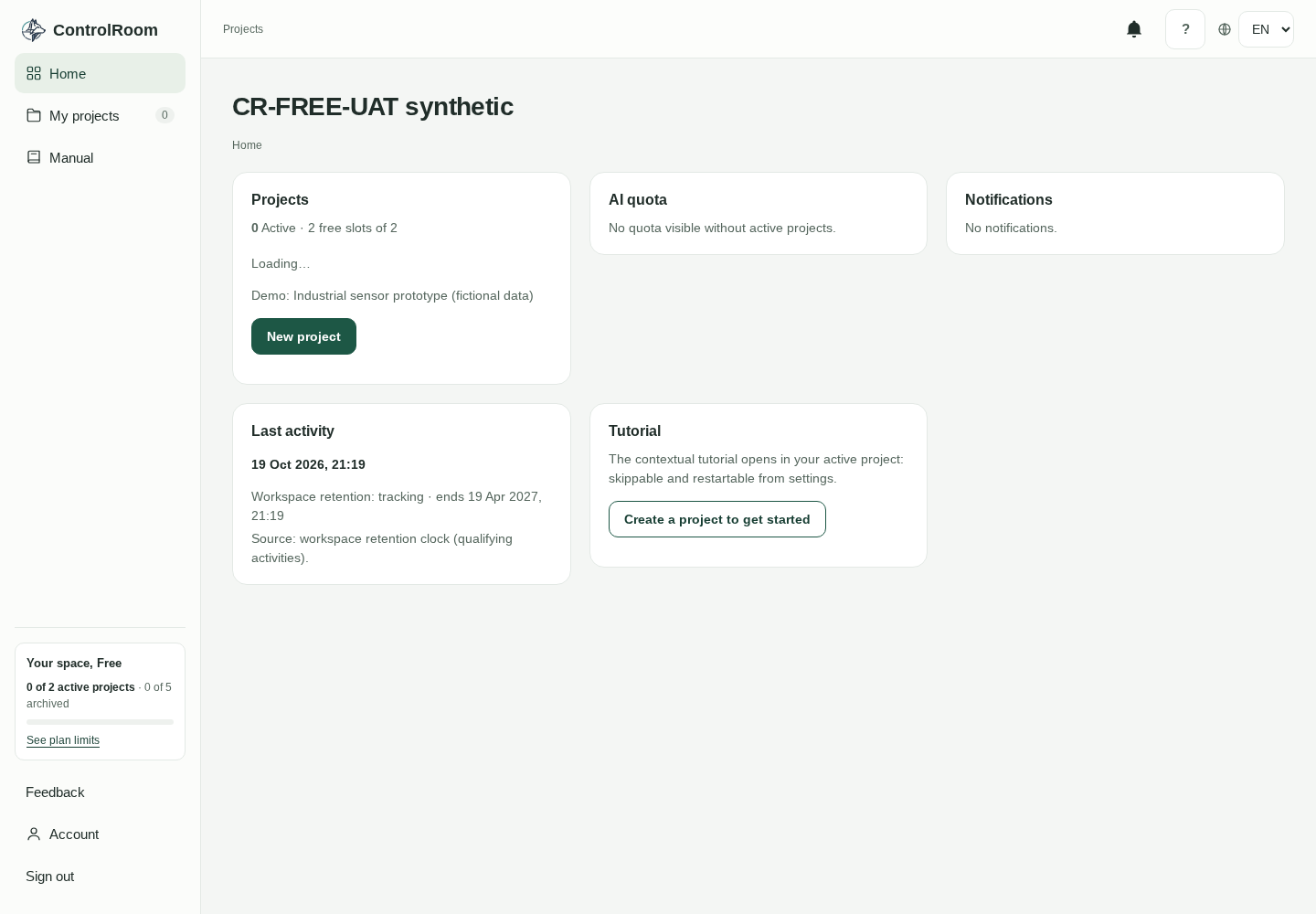
Home: the rail with "Home" highlighted on the left, the topbar with the bell and its unread counter, and the Projects, AI quota, Notifications, Last activity and Tutorial cards.
The Projects card opens with "{n} Active · {free} free slots of {limit}". The list shows the active projects with their name (a link to the project's cockpit, its Overview) and code; below it, the demo line without the [DEMO] prefix and, if any, "Archived: {n}". The "New project" button leads to creation; rename, copy and archive stay on the Projects page.
Note: with zero active projects, the Projects card list shows "Loading…" even after loading has finished. It is a known quirk of the empty list, not an error: the other cards stay correct.
The AI quota card shows "Valid reviews this week: {used} of {limit} (resets {reset}, Europe/Rome)." The quota is the first active non-demo project's: it belongs to a project, not the workspace, and every project has its own. With no active projects you see "No quota visible without active projects."
The Notifications card shows "{n} unread" when there are any, then the first 5 items as project names in plain text; with no items, "No notifications." The full bell panel is described in the AI review chapter: here you find only an extract.
The Last activity card shows the workspace retention clock timestamp, or "No activity recorded." When the clock is running you see the row "Workspace retention: {state} · ends {end}" with the end date of the 6-month period; the possible states and what sets them apart are defined in the Account and data chapter. The hint declares the source: "Source: workspace retention clock (qualifying activities)." Reading Home does not advance the clock: it is a read, not a qualifying activity.
The Tutorial card carries "The contextual tutorial opens in your active project: skippable and restartable from settings." The "Open the tutorial" button opens the first active project's cockpit: the tutorial panel appears only in that project, never on Home. With no active projects the button becomes "Create a project to get started".
With a suspended workspace, Home shows a suspension note and the workspace pages are replaced by a blocking card: everything is read-only until a platform administrator reactivates it, with the reason shown and a link to Account. The details are in the Account and data chapter.
While loading, Home shows "Loading…". If something fails, you see the error message with a "Retry" button that reloads all the cards together: no card shows an invented number in the meantime.
Home is a read-only summary page: it does not compare projects economically and shows no simulated data. Every number comes from the real pages, and each card is only the shortcut to get there.
Each project as a card: open, rename, copy with a date preview, archive and reactivate.
The page opens with the title “Your projects, at a glance.” and its subtitle. Below it, the banner “The Free plan includes {n} active projects, {r} archived and a separate demo.” with the link “See plan limits” to the Home page, where all the plan quotas live.
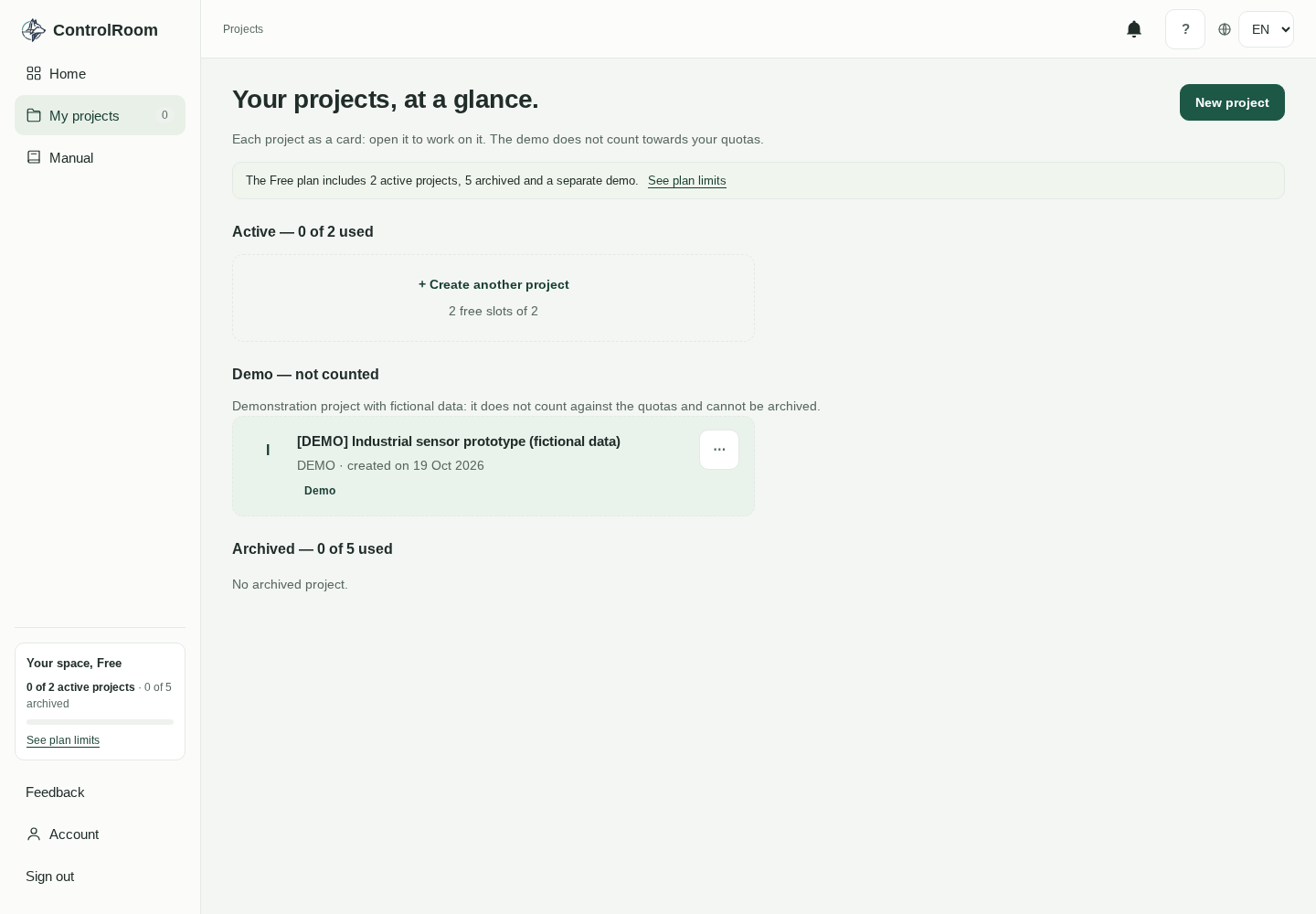
The sections have headers with counters: “Active — {n} of {max} used”, “Demo — not counted” with the note on fictional data (uncounted and not archivable), “Archived — {n} of {max} used”. When the limit is reached the banner changes: “You have reached the limit of {n} active projects: archive one to create or reactivate another. Nothing is archived automatically.”
The real Projects page, on the demo project: the Active, Demo and Archived sections with their counters.
Each card shows the avatar letter, the name, the line “{code} · created on {date}” and the status chip: Active, Demo or, for archived projects — muted — “Read only”. The whole card is clickable and opens the cockpit. The “⋯” menu on the right holds the row actions; the demo row shows only Copy: it is never renamed or archived.
Rename: active projects, never the demo.
Copy: active projects and the demo; at the full limit it is disabled, with a tooltip pointing to the limit.
Archive: active projects, never the demo.
Reactivate: archived projects.
Rename opens an inline field: input up to 200 characters with the cursor already in it, Save disabled when the name is blank or an operation is running, Cancel to leave.
The “New project” button is disabled at the full limit. If the Active section is empty, in place of the cards there is the slot card “+ Create another project” with “{free} free slots of {limit}”; with no card and no free slot, the section says “No active project.”
The demo creates itself on your first visit: the page shows “Preparing the demo…” and reloads with the demo ready. The operation is idempotent and runs in your account’s language — repeating it never produces a second demo. You never create it by hand.
After a rename, an archive or a reactivation the change is already saved: if the following data refresh fails, you see the banner “Saved, data not updated.” with “Refresh data”, which retries the read only.
Copy opens the dialog “Copy of “{name}””. For a real project it copies the structure and the tasks with their internal links and the planned dates, but not the actual dates, the progress, the owner and executor names, the costs, the suppliers, the budget or the reviews. Statuses restart at To do, tasks are unblocked and the new project takes one of the active slots.
In the dialog the name is prefilled “{name} (copy)” and editable up to 200 characters. The start date is optional, with the hint “Leave empty to keep the original dates.”: if you leave it empty, the planned dates stay the original ones.
For the demo, Copy takes the structure only: phases, activities and milestones, no tasks and no fictional data. The result is a real project that takes one of the active slots. Here the start date is required — “For the demo the start date is required.” — and is prefilled with today.
The shift rule is declared in the dialog: “Planned dates move keeping durations and distances (no working calendar).” No working calendar is applied: Saturdays and Sundays stay where they fall.
The “Preview of the new dates” pane shows the dates before you confirm: while it computes, “Loading the preview…”; if it fails, “The preview could not be loaded.” with a “Retry” button.
When the preview is ready you read “Will be copied: {p} phases · {a} activities · {m} milestones · {t} tasks ({l} linked to an activity)” — for the demo: “Only the structure will be copied: {p} phases · {a} activities · {m} milestones · no tasks”. Below it, up to 8 remapped rows with the old planned date and the new one.
Beyond the 8 rows you see “… and {n} more items”. The preview recomputes on every start-date change and “Create copy” stays disabled until it is ready. On success the new project’s cockpit opens.
Archiving asks for confirmation: “Archive “{name}”?” — “The project becomes read-only and stops counting as active. Category and supplier names stay as they are today. You can reactivate it when a place is free.”
Reactivating is the mirror image: “Reactivate “{name}”?” — “A free place among the {n} active ones is needed; nothing is archived automatically.” An archived project is read-only in every section and you cannot request an AI review for it.
A copy never touches the original and nothing is ever archived automatically: archiving and reactivating are always your actions. The demo contains fictional data, which is why its copy is structure only: no invented data enters your real projects.
The decisions page: header, signal rules, budget card, next milestones and formats.
The header shows the project name as the title — never the code — and the line “Time zone: Europe/Rome · today: {date}”. Next to the title, two chips: “Demo project”, only for the demo, and “Needs attention”, with a dot, when any signal is open: overrun, blocked tasks, late elements, missing data — budget not set included.
In the demo project, the banner under the title reads “This is your demo project. Explore it and change the data freely.” with the “Create your project →” action. An archived project shows “Archived project: read-only.” instead. If the project has no data yet, the page says so: “The project has no data yet: add activities, tasks or costs to see the signals.”
Two actions in the header. “Export report” is always available and opens the export panel (PDF and PPTX export chapter). “New AI review”, the primary button, appears only when the AI is available: it takes you to the AI panel at the bottom of the page, where you pick the scope and confirm (AI review chapter).
The Decisions card opens the page: “Before the next gate, there are decisions to make.” and “Each row leads to the page where you act: no counters, only concrete steps.” Below, one row per signal. Each row is fully clickable: the section icon, the title, the explanation, a chip and a chevron.
“Review the economic exposure” / “Exposure {x} against a budget of {y}: overrun {z}.” with the “+{pct}% over budget” chip (one decimal) → Costs. Costs icon, warning tone.
“Set the budget” / “Without a budget the overrun cannot be assessed.” → Costs, warning tone.
“Complete the missing information” / “Optional fields: none blocks saving.” with the “{n} missing data” chip → opens the page of the first missing entry. Plan icon, neutral tone. With one entry the text stays plural: “1 missing data”.
“Recover {n} late elements” / “Plan elements and tasks have independent statuses and dates.” → Plan. Plan icon, critical tone. The counter includes activities, milestones and tasks.
The signals are mutually exclusive and follow a fixed order: blocked, then overrun or budget-not-set (never both: without a budget the overrun cannot be assessed), then missing data, then late. Each group shows a single row — the first blocked task, the first missing entry — and the total appears in the missing chip and in the late title. The dot in a chip marks the critical tone.
With no signals, the card shows “No open decisions” with “All signals are clear with the data entered.” and the “Open the plan →” link inside the card: that is already an answer to bring to the committee.
The budget card “Where the budget goes” shows the label “Actual costs + Remaining committed costs” and the big exposure figure; over budget it adds the “+{pct}% over budget” chip. The bar has two segments — actuals in dark green (#2B6652), committed remaining in light green (#ADC3A6) — with the vertical red budget marker (#B24736) and a three-item legend. The scale is the larger of budget and exposure: the marker stays visible even over budget.
Below the bar, three rows: “Actual costs”, “Remaining committed costs” and “Budget margin”. The margin is the only figure with an explicit sign, red when negative, “—” without a budget. If the budget is not set, the card shows “Budget not set: the overrun cannot be assessed.” with “Set the budget”, and the bar and stats stay hidden.
The card closes with the disclaimer “Exposure on known values: not progress, not a forecast.” — with “The total is partial: {n} items cannot be valued in EUR.” when needed — the note “This is not a forecast.” and the “Details →” link to Budget and costs.
The “Next milestones” card takes at most three dated elements from the Plan, ascending: milestones use the planned date, the others the planned end; undated elements are excluded. Each row is a coloured dot, the title and “date · state”, and links to the Plan.
The state derives like this: done when the element is completed; late when the date has passed and it is not done; in progress when an actual start date is set; upcoming in every other case. At the bottom of the card, “Open the plan →”; with no dated elements, “No dated element in the plan.”
The page is two columns: on the left, Decisions, Next milestones and the scheduled-review panel (day and hour in Europe/Rome, next run, latest runs with outcome and reason: details in the AI review chapter); on the right, the budget card and the collapsible “Getting started guide”. The AI panel sits at the bottom of the page, reached by the “New AI review” header button.
Number formats are fixed: whole euros with grouping in the interface language (48,000 € in English, 48.000 € in Italian), percentages with one decimal (+3.1%), dates in the local format (“19 Oct 2026”) and “—” for unknown values. The margin is the only figure with a sign.
Icon legend: in the decision rows, board for the Kanban, costs for Budget and costs, plan for the Plan; in the header, export for “Export report” and review for “New AI review”. The dot in a chip marks the critical tone. In Next milestones, the dot colour tells the state: solid green done, green with a ring in progress, red late, grey upcoming.
While loading, the page shows “Loading…”; if the request fails, “Operation failed” with the “← Projects” link back to the list.
The decision rows on the left, the two-segment bar with the red budget marker on the right, the next milestones at the bottom left.
The Overview's economic numbers are the exposure on known values: neither progress nor a forecast at completion. If some items cannot be valued in EUR, the total says so. And signals only appear when the data does: no data, no signals — the Overview tells you so.
Phases, activities and milestones: dates in the drawer or the Gantt, separate drafts, colours, moves and per-item history.
The Plan is made of phases, each with activities and milestones. There is no table to fill in: dates are edited in the item drawer — a 480 px panel, full-screen on the phone — or directly in the Gantt. Gantt changes stay a draft until you press Save; every change lands in the item’s history.
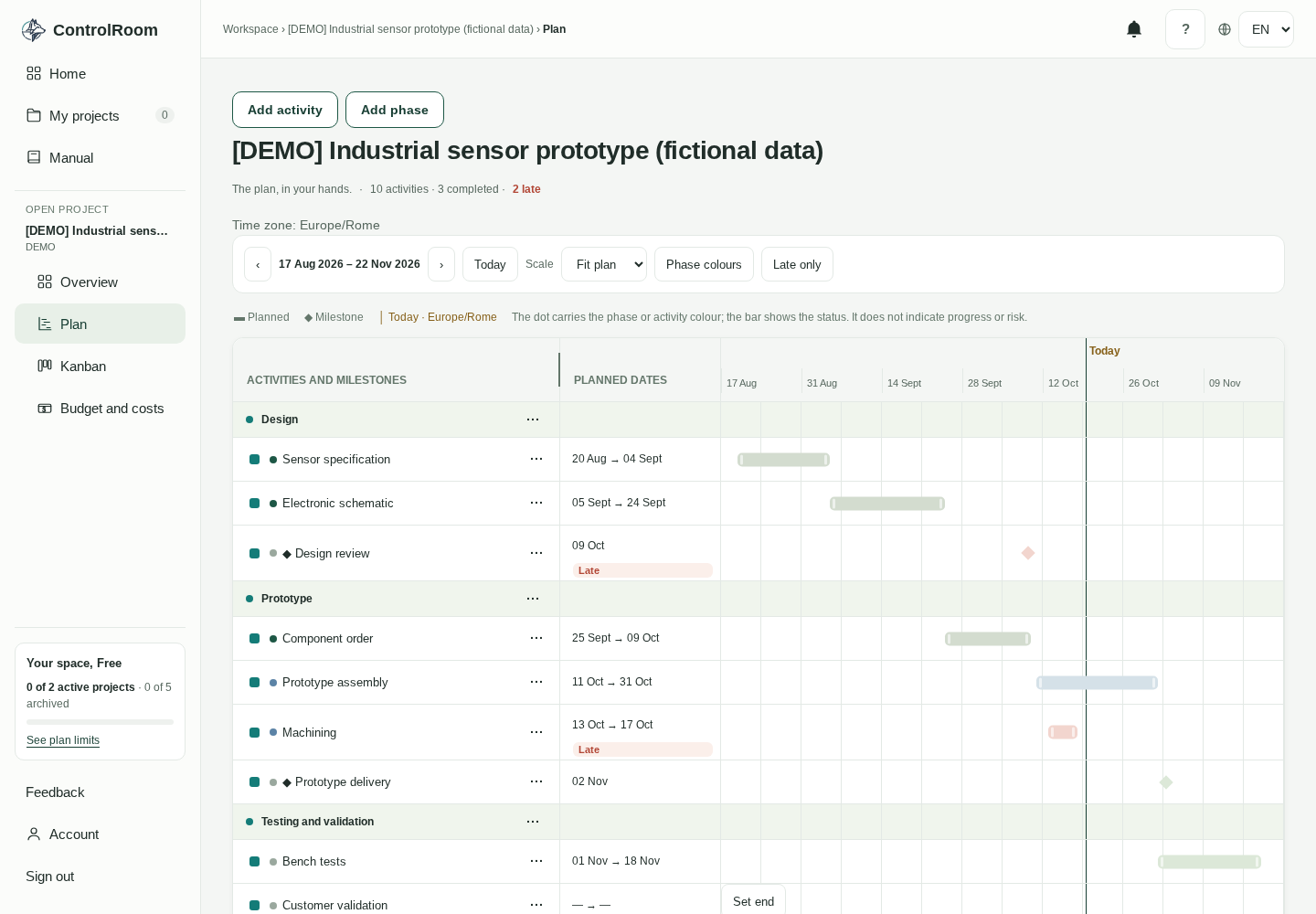
The demo project’s Plan (fictional data).
The header counts for you: “{n} activities · {x} completed · {y} late”, with the late counter in red when it is above zero. An element is late when its date has passed and it is not completed: for a milestone that is the planned date, for an activity the planned end. The actions “Add activity” — which targets the first phase and becomes “Add phase” when there are no phases — and “Add phase” appear only when the project is editable, together with the persistent note “Time zone: Europe/Rome”.
Phases are created inline with the “Phase name” field (up to 200 characters); renaming comes prefilled with the current name.
Deletion asks “Delete “{item}”?” and has blocking rules: “Move its activities and milestones to another phase first.” for non-empty phases, “A project keeps at least one phase.” for the last one.
The ▲▼ buttons move the phase with a confirmation: “Move phase “X” before “Y”?”; if the order changed, “The order changed in the meantime. The plan was reloaded: repeat the move.”
All these actions live in the phase “···” menu.
“New activity” and “New milestone” live in the phase “···” menu. The drawer asks for: title (required, 200 characters), phase (changing it moves the item to the end: “Changing the phase moves the item to the end of the chosen phase.”), owner (120), description (activities only, 2000), status and dates. The validations are explicit: “A title is required.”, the end cannot precede the start (planned and actual) and actual dates cannot be in the future (maximum: today).
Statuses are not one list for everything: activities have four (To do, In progress, In review, Completed), milestones only two (To do, Completed). A milestone does not pass through “In progress” or “In review”: either it is still to do, or it has been reached.
The drawer proposes, never imposes: the first time you pick “In progress”, the actual start is prefilled with today (“Proposal: today, editable.”); picking “Completed” prefills the actual end (or the date, for milestones) with today. The proposals can always be cleared. Reopening a completed item empties the actual end or date: “Reopening: the current actual end/date will be emptied; the previous value stays in history.”
There is no special flag for a Completed item without dates: today is proposed and clearable, and it is the Overview that flags optional fields left empty.
The drawer has a draft of its own, distinct from the Gantt’s. Closing it with unsaved changes shows “Discard changes?” with “You have unsaved changes.”; a browser warning protects you if you close or reload the page. If the session expires, the input is kept in the tab memory and, on return: “We restored your earlier unsaved input. Review it and press Save.”
Every element has its own history, inside the drawer: entries with date and time, the action and the field-by-field before → after diffs. When there is nothing: “No changes recorded.”; if loading fails, an error with the “Retry” button. Activities and milestones are deleted from the drawer, with a confirmation (“Delete {item}?”): the deletion stays recorded in the history.
The Gantt has no fixed window: the default scale is “Fit plan”, which fits the data, with the options “4 weeks” and “Quarter”. The ‹ › buttons jump a whole period; “Today” recentres the view and draws the Today line. The legend summarises the glyphs: “▬ Planned / ◆ Milestone / │ Today · Europe/Rome”.
Mouse: drag the bar to move an activity, its edges to change start or end.
Keyboard: ← → move by one day; Enter or Space opens the date dialog.
The dialog applies to the draft (“Apply to draft”), it does not save; “The end cannot be before the start.” blocks impossible dates.
On the phone: date fields instead of dragging.
While the change is pending, the row shows “Before: {old dates}”.
The element “···” menu opens the “Details” popover: status, owner, actual dates and actions.
Colours are managed in the “Phase colours” popover: a six-colour palette for the phases, and a dot per element that can take its own colour or stay on “Inherit from phase” (“Default colour” restores the standard behaviour). The rule is explicit: “The dot carries the phase or activity colour; the bar shows the status. It does not indicate progress or risk.” Late bars are pink (#F2D5CE).
A late element gets the pink bar and the “Late” chip; the “Late only” toggle shows just those. The header counter follows the same rule. Rows outside the visible period read “Outside period”; for undated elements the “Set date” or “Set end” buttons appear (in read-only: “Missing dates”).
The Gantt has a distinct draft: as soon as you touch a bar the banner “Local draft, not saved yet.” appears with Save, Cancel and “Saving…” while saving; at the end: “Changes saved to the Plan.”. While the draft is active all other Plan actions are locked (“Save or cancel the draft before using other Plan actions.”) and Esc cancels. If saving fails: “Save failed. Your draft is preserved: try again.”
If the plan changed on the server: “The plan changed on the server.” with “Keep the draft” or “Reload the plan”. After the session expires, on return: “Draft restored: review it and press Save.”
The name-column splitter adjusts between 23% and 45% of the width, with the mouse and with the arrow keys. In the footer: “Reference · {date} · {n} activities · Calendar days”, and the “?” popover that points to this manual.
An archived project is read-only: “Archived project: read-only.”, the controls disappear, the Edit button becomes “History” (view only) and the Gantt is fully locked.
After a save you may see the “Saved, data not updated.” banner: the save succeeded but the follow-up read did not come back current. “Refresh data” retries the read alone, without touching the drafts.
Glyphs and controls, in short:
▲▼ move a phase or an element, with a confirmation.
··· opens the phase menu or the element “Details” popover.
◆ is a milestone in the Gantt.
‹ › jump a whole period; “Today” recentres and draws the Today line.
“?” in the footer points to this manual; the “Late” chip marks an element whose date has passed while it is not completed.
The Plan is the model you maintain: planned dates are promises you update by hand, and the Gantt shows dates and status, not progress or risk. With the individual account there is no multi-user collaboration: one person keeps the plan, and the time zone is always Europe/Rome.
The week’s work: columns, cards with badges, the task drawer, blocks with reasons and history.
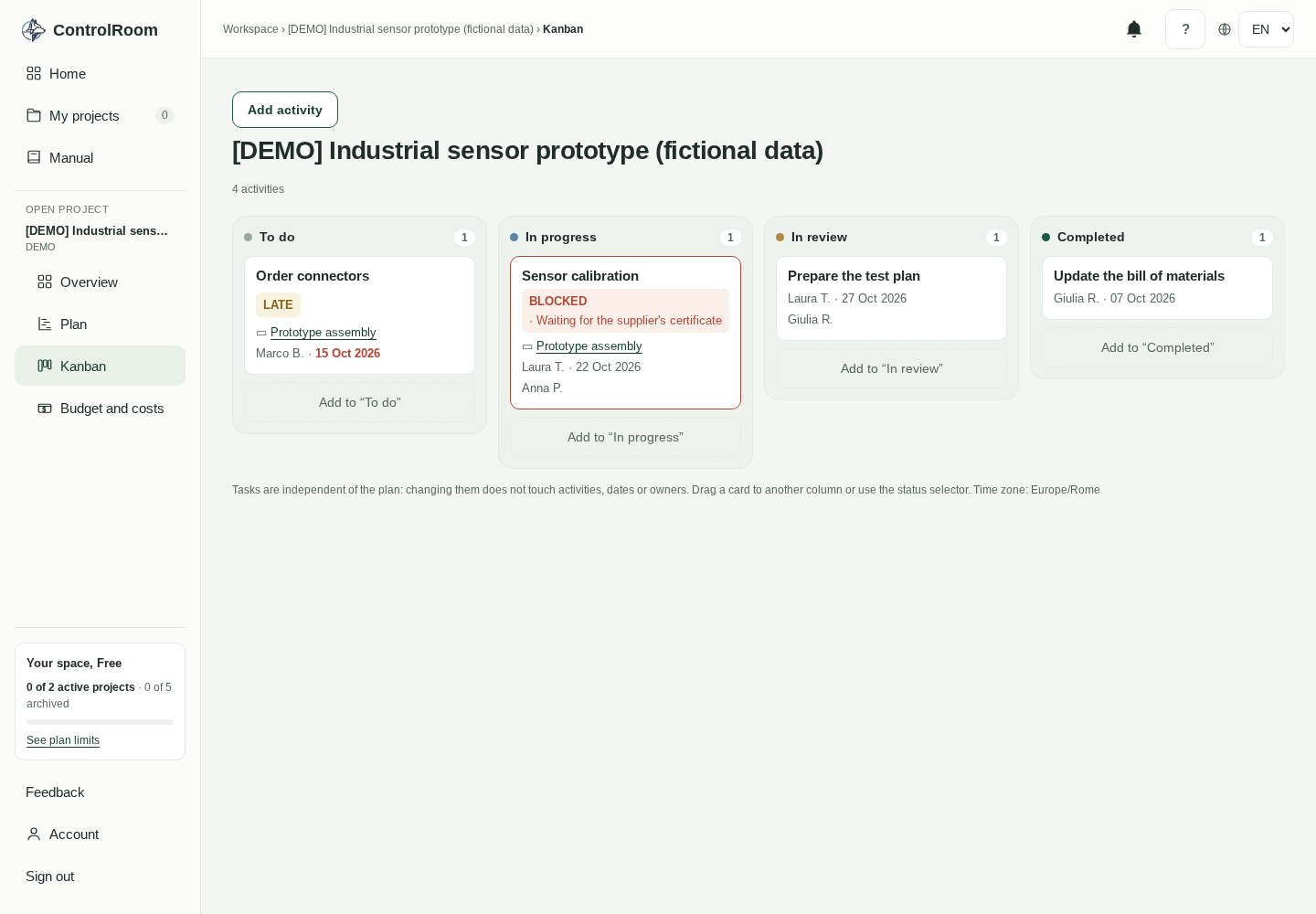
The board has four columns, one per status: To do (grey dot), In progress (blue), In review (amber), Completed (green). Each column carries a count pill. The page header shows the project name, the total “{n} activities” and the “Add activity” button, visible only when the project is editable.
Each card tells one task: the title; the red BLOCKED badge with the reason inline after a middle dot (“· waiting for the contract”, truncated when long) and the red border; the amber LATE badge; the due date in red when late; the “▭ {activity}” link that jumps to the Plan without opening the drawer; the owner or “no owner”; the due date or “no due date”; the executors joined by commas. The “no …” placeholders are the same missing-data signals the Overview reports: filling them here closes the decisions there.
The demo project's board (fictional data). The visual vocabulary: column dots, count pills, BLOCKED and LATE badges; while dragging, the target column highlights with a dashed outline.The task details open with one click: here you change the status, record a block or link the plan activity.
The LATE badge follows a single rule: the due date has passed and the status is not Completed. Fix it by completing the task, or by correcting the date if it was wrong.
You change the status by dragging the card to another column or from the drawer. Dragging works only when the project is editable and no save is in progress; the target column highlights with a dashed outline. Dropping a blocked card on Completed does not move it silently: it opens the unblock modal.
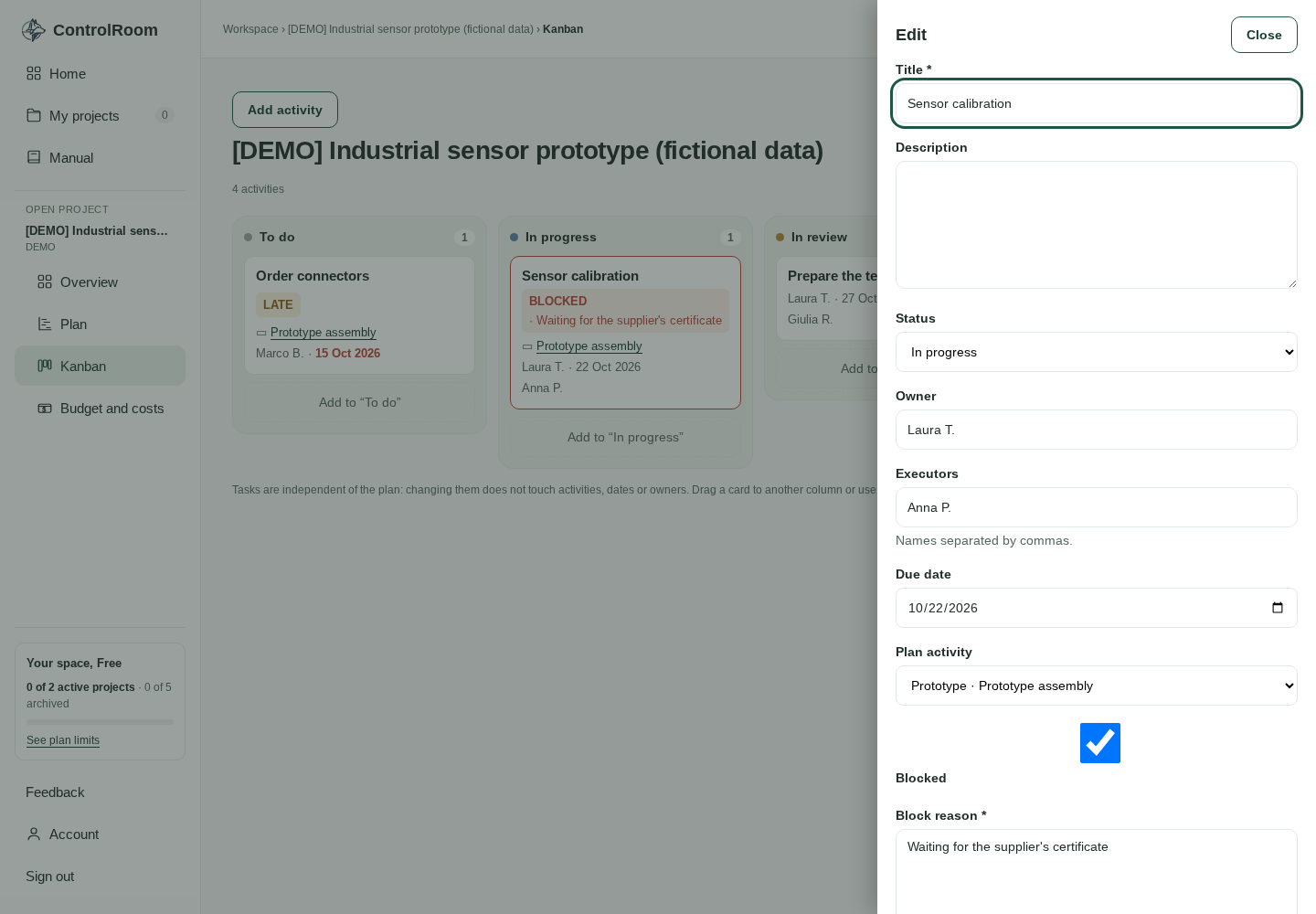
Title, required, 200 characters: without it, “A title is required.”
Description, 2000 characters.
Status: the same change you get by dragging.
Owner, 120 characters, with suggestions from the names already in the project.
Executors, comma-separated names (hint: “Names separated by commas.”).
Due date, a date field.
Plan activity: “No link” or a “phase · activity” entry.
Blocked and, only when checked, Block reason, 2000 characters: without it, “A reason is required when the task is blocked.”
Validation errors appear under the field they refer to, and so do server errors.
You can create a task from two places: the “Add activity” button in the header and the dashed per-column button “Add to {column}”. A new task always starts in To do, whichever column you pressed: the status is set in the form or by dragging the card.
“Delete” appears only when you edit an existing task, and it asks for confirmation (“Delete {item}?”). The deletion stays recorded in the history.
Closing the drawer with unsaved changes asks “Discard changes?” — “You have unsaved changes.” — with “Keep editing” and “Discard”; leaving the page also triggers the browser warning. If your session expires while you type, after signing in the drawer reopens once with “We restored your earlier unsaved input. Review it and press Save.”: what you typed is not lost.
At the bottom of the drawer sits the task's history: timestamped entries with the action — Created, Updated, Status changed, Blocked, Unblocked, Deleted. On block and unblock the reason is quoted in “…” . With no entries: “No changes recorded.”; if the load fails: “History unavailable.” with “Retry”.
A Completed task cannot be blocked: that is why unblocking means completing. The modal says it precisely: “Unblock and complete {item}?” — “A DONE task cannot be blocked. The block reason stays in the history: {reason}.” — with Cancel and “Unblock and complete”. A brand-new task saved as Completed and Blocked is stored unblocked, with the reason cleared.
The mandatory reason is not a form constraint, it is governance: it becomes the decision row in the Overview (task title + reason) and the audit entry in the history. Nobody blocks or unblocks silently.
Owner and executors are different roles: the owner is the single accountable person, the one who answers for the task; the executors are the helping hands. On “Fix the product descriptions”: owner Marta, executors “Anna, Luca”. The suggestions come from the names already used in the project.
The link to a plan activity is optional and reversible, and it copies no dates or owners. Link it when the task is the operational counterpart of a planned activity: reviews and reports tell one story. Leave “No link” for ad-hoc work.
On an archived project the board is read-only: “Archived project: read-only.”, no buttons, no dragging, cards do not open. On load you see “Loading…” ; if the read fails, the error with “← Projects”. A save that succeeded but could not be re-read shows “Saved, data not updated.” with “Refresh data”; while saving, the button shows “Saving…”.
Cards are buttons: Enter or Space open the detail, Esc closes (with a confirmation when dirty) and after a move the focus returns to the moved card. Due dates are plain dates evaluated in the Europe/Rome time zone, as the footer declares: “Time zone: Europe/Rome”. The same footer reminds you to drag a card to another column or open the detail and change the status, and that tasks are independent of the plan.
Tasks are independent of the plan: changing them does not touch the plan's activities, dates or owners, and the link to an activity is optional and always reversible. Owner and executor names are free text: no linked accounts, comments or attachments.
Actuals and commitments as separate ledgers: exposure, links, FX rates, cancellations and catalogs.
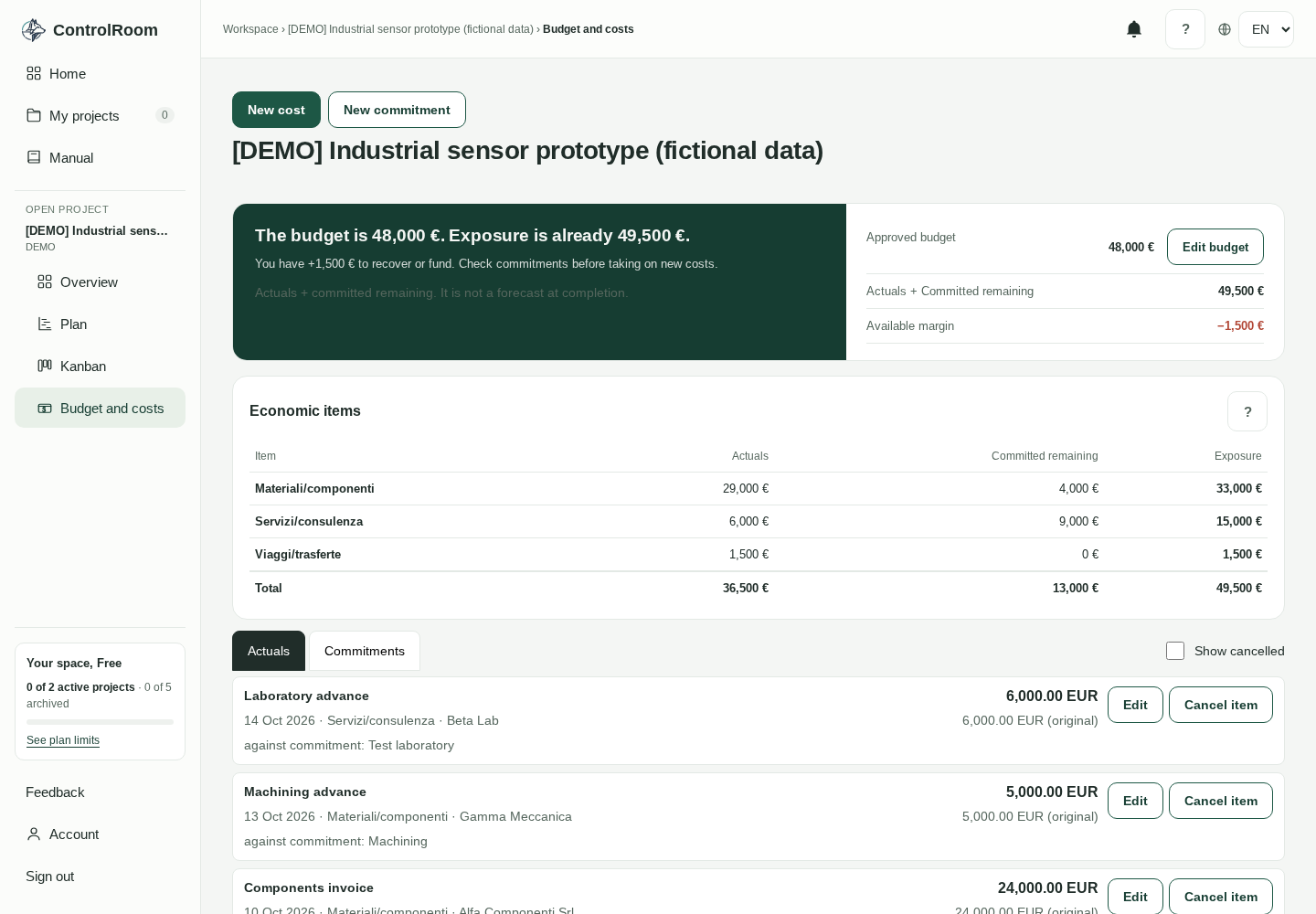
The page has four parts: the box at the top with budget and exposure, the “Economic items” table by category, the register with the Actuals | Commitments tabs and the “Categories and suppliers” panel. Items are created from the “New cost” and “New commitment” buttons in the header: with an archived project (read-only) the buttons do not appear. In the rail the section carries the banknote icon, the same as this chapter's title.
The section on the demo project (fictional data): the budget and exposure box, the economic items by category and the register.
Set the budget: empty means “not set”, zero is allowed.
Record the commitments (“New commitment”): the money you already promised.
Record the linked actuals (“New cost”, or “Register actual” from the commitment): the remaining shrinks by itself.
Apply the system exchange rates to foreign-currency items, so they enter the totals.
The top box tells the situation in one sentence: “The budget is {budget}. Exposure is already {exposure}.” Without a budget: “The budget is not set: exposure cannot be assessed.” When exposure exceeds the budget: “You have {delta} to recover or fund. Check commitments before taking on new costs.”; otherwise “Everything is under control with the data entered.”
Below the sentence, the fixed reminder: “Actuals + committed remaining. It is not a forecast at completion.”
Approved budget: the amount, or “Not set”, with the “Edit budget” button.
Exposure: the “Actuals + Committed remaining” row.
Available margin: budget minus exposure; red when negative, “—” without a budget.
“Edit budget” opens an inline field: up to 12 integer digits and 2 decimals, with Save and Cancel. Empty means “not set”: the budget is removed. Zero is allowed; an invalid amount is rejected with “Invalid amount: use a positive number with at most two decimals.”
If some items have no EUR value, the page warns below the box: “Partial total: {n} items without an EUR rate are not included.”: apply the rate to those items to complete the total.
The “Economic items” table repeats the totals per category (Actuals, Committed remaining, Exposure) plus the Total row; zero-sum categories are hidden. The question mark opens “How to read the totals”: “Actuals and commitments are separate ledgers: exposure is their sum over known values. Items not valued in EUR are not included.”
The register has two tabs, Actuals and Commitments. The “Show cancelled” checkbox (off by default) reveals the cancelled items, muted and with the CANCELLED · reason chip.
Bold description, then “date · category · supplier · ▭ activity” when a plan activity is linked.
Bold EUR amount, or “Not available” with the “Apply rate” button; below it, “{amount} {currency} (original)”.
Linked actual: the “against commitment: {description}” line, with CANCELLED if the commitment is cancelled.
Commitment: also “due {date}” and “Remaining: {amount} {currency}”.
The register's actions are: “Register actual”, “Apply rate”, “Show cancelled”, plus “Edit”, “Cancel item”, “Restore” and “Details”. In the app they are text-only buttons and checkboxes, without icons: here they are listed by name. “Edit” exists only for valid items.
The icons of this section, as you see them in the app:
The banknote: the “Budget and costs” rail entry and this chapter's title.
The “?” next to the “Economic items” title: it opens “How to read the totals”.
Cancelling opens a dialog with a mandatory reason (up to 2000 characters: “A reason is required.”). The contract is explicit: “The item leaves the totals; original amount, reason and history are kept. No other item changes.” Restoring says: “The item returns to the totals. No other item is restored.”
“Register actual” on a commitment opens the form already filled with the commitment's currency, category, supplier, activity and commitment. The proposed amount is the remaining, when positive, with the notice “Prefilled from the commitment: review and press Save.”; with zero remaining the amount stays empty: “Remaining is zero: no amount proposed. Enter the actual amount.”
The arithmetic is always the same: 9,000 € commitment, 3,000 € actual, 6,000 € remaining; exposure counts 3,000 + 6,000, never 9,000 twice. The commitment's “Details” panel shows “Valid actuals: {x} {currency} · Remaining: {y} {currency}” and the “Linked actuals” list, or “No linked actuals.”
The form opens as a side drawer. Required: description (200 characters), date (not future: “The date cannot be in the future.”), amount and category, preselected with the workspace default (“Altro”). The “Expected due date” exists only for commitments.
Amount: required; accepts “1250.5” and “1 250.50”; at most two decimals, otherwise “Invalid amount: use a positive number with at most two decimals.”
Currency: EUR, USD, CNY (shown “CNY (RMB)”) or CHF. Editing a linked item locks the field: “Unlink the item first to change its currency.” (for a commitment “Unlink the linked actuals first to change the currency.”); changing the currency unlinks a linked commitment in a different currency.
Supplier: optional, with inline “New supplier”; the plan activity is optional too.
Linked commitment (actuals only): list filtered by the same currency, cancelled ones marked; when there are none, “No linkable commitment in this currency.” With a cancelled commitment, the warning appears: “The linked commitment is cancelled: the actual counts in the totals, the commitment stays cancelled with zero remaining.”
At the bottom the “Time zone: Europe/Rome” reminder; server errors appear under the fields and the button becomes “Saving…”.
The rate applies only to non-EUR items without a EUR value: “Apply rate” appears next to “Not available”. The dialog “Apply the exchange rate to “{item}”” shows the preview “Original amount {amount} {currency} · rate {rate} · {eur} EUR.”
If no system rate exists for that currency: “No system exchange rate exists yet for {currency}.”; if meanwhile the item or the rate changed, the dialog shows a new preview: “The rate or the item changed: here is a new preview.”
The applied rate is versioned and stays fixed to the item: correcting the amount later does not change it. From then on the item has its EUR value and appears in the totals; before that, the totals are partial and say so.
The “Categories and suppliers” panel governs the two catalogs. Categories are shared in the workspace: you create them with “New category”, rename them inline, deactivate and reactivate them; the counter shows active/total and the deactivated ones are marked “(inactive)”. Suppliers belong to the single project, with “New supplier”.
A deactivated entry stays on existing items but is no longer selectable for new ones. You deactivate instead of deleting: the history keeps its name and the totals do not change, while new items can no longer use it.
When you edit an item, the form shows the History: date and time · action · “reason” · amount before → after, when the amount changed. If the read fails: “History unavailable.” with Retry; if there is nothing: “No changes recorded.”
The page protects unsaved input: if the session expires with the form open, on return you find the values again with the notice “We restored your earlier unsaved input. Review it and press Save.” Closing with changes asks “Discard changes?” (“Keep editing” / “Discard”) and the browser warns before leaving the page too.
If a save succeeds but the data cannot be re-read, the banner “Saved, data not updated.” appears with “Refresh data”. An archived project is read-only: no create, edit or cancel buttons. While loading you see “Loading…”; if the page cannot load, the error carries the “← Projects” link.
Amounts are decimal strings shown with the language's grouping: 1.234,56 in Italian, 1,234.56 in English; the negative margin is red and missing values show as “—”. The total counts the commitment's remaining, never the full amount: with a linked actual, counting both in full would be double counting. Actuals and commitments always stay separate ledgers.
Exposure is on known values, not a forecast at completion: an item without an EUR rate is not included until you apply the rate, and the page says so. Zero is an allowed budget; empty means “not set”, and the Overview flags it as an open decision.
The assisted reading of the data: scope and outcomes, snapshot, history and feedback; the scheduled review and the notification bell.
Under the button, the quota line always tells you where you stand: “Valid reviews this week: {used} of {limit} (resets on {reset}, Europe/Rome).” Every time in this chapter — the quota reset, the schedule hour, the run times — is in Europe/Rome, whatever the browser time zone.
There are two limits, and they are distinct. The weekly quota is yours: 2 valid reviews, and an invalid review uses no quota. The monthly AI budget belongs to the platform: when it is used up, past reviews remain readable and manual work stays available; reviews resume next month or when the budget is raised.
The “New review” button appears only when a review can really be requested; the history of past reviews stays readable regardless. In its place you may see one of these six blockers:
“Archived project: read-only, reviews cannot be requested.”
“AI review is not available in this environment.”
“A review is already in progress in this workspace.”
“Weekly review quota used up.”
“The platform’s monthly AI budget is used up: manual work and past reviews remain available; reviews resume next month or when the budget is raised.”
“The project has no plan, task or cost data to analyse yet.”
From the Overview, in the panel with the review icon, press “New review” and choose the scope: “Whole project” or “One phase only (partial review)”; for a phase, pick from the menu “{title} · {a} activities · {m} milestones · {t} tasks”.
The preview shows “What will be analysed” (phases, activities, milestones, tasks, commitments, actuals) and, when needed to explain residuals: “Accounting support outside the scope (only to explain residuals): {c} commitments, {a} actuals.”
Under “Excluded from the review” you see what stays out: activities and milestones of other phases, tasks not linked to the phase, commitments and actuals not linked, “{n} cancelled economic items” and the descriptions — “Descriptions are not sent to the model.”
The expandable “Fields sent to the model” lists the sent fields. Owners, executors and suppliers are replaced by aliases; titles are sent as they are: keep sensitive data out of the free-text fields.
Check “Estimated size: {est} of {max} tokens (conservative estimate).” If “The context exceeds the technical capacity: nothing is cut silently. Choose a phase.” appears, switch to a partial review: nothing is ever cut behind your back.
Press “Confirm scope and generate” — disabled until the preview is ready — knowing that “A valid review uses 1 of this week’s reviews; an invalid one uses no quota.” While computing you see “Computing the scope…”; if it fails, the error appears with “Retry”; “Cancel” closes without using anything.
The AI review in the demo project (fictional data): quota, scope and preview.
The partial review is declared before and after. In the preview and on the result you see the banner “Partial review — It covers only the phase “X”. It does not describe the state of the whole project.” Use it on large projects or when you want a focused read before a gate. While it runs you see “Review in progress: it can take up to a couple of minutes. You can stay on this page.”: the page checks the state every 2 seconds and at the end refreshes the quota line and the history by itself.
When it finishes, the title becomes “Review ready”, with the chip “Whole project” or “Phase: {title}”. If it did not succeed, the title is “Review not produced” and the code explains why; either way, no quota is used:
f_INVALID_OUTPUT — “The output did not follow the required structure or its evidence did not match the data, so it was rejected in full. No review produced, no quota used.”
f_OUTPUT_INCOMPLETE — “The provider did not complete a usable answer. No review produced, no quota used.”
f_PROVIDER_REJECTED — “The provider refused the request. No quota used.”
f_PROVIDER_UNAVAILABLE — “The provider could not be reached. No quota used.”
f_NOT_STARTED — “The request was interrupted before it was sent. No quota used.”
f_AI_BUDGET_EXHAUSTED — “The monthly AI budget is used up. No quota used.”
Then there is the “Uncertain outcome”: the provider may have processed the request. It is not retried automatically, it uses no quota, and you can request a new review. If the error arrives at request time, the message says so immediately: e_REVIEW_QUOTA_EXHAUSTED (weekly quota used up), e_AI_BUDGET_EXHAUSTED, e_REVIEW_IN_PROGRESS (another review is in progress), e_MANIFEST_STALE (“The data changed after the preview: check the scope again and confirm.”), e_SCOPE_TOO_LARGE (“The context is too large: choose a phase.”), e_AI_UNAVAILABLE, e_PROJECT_ARCHIVED, e_EMPTY_PROJECT (“There is nothing to analyse in this scope.”).
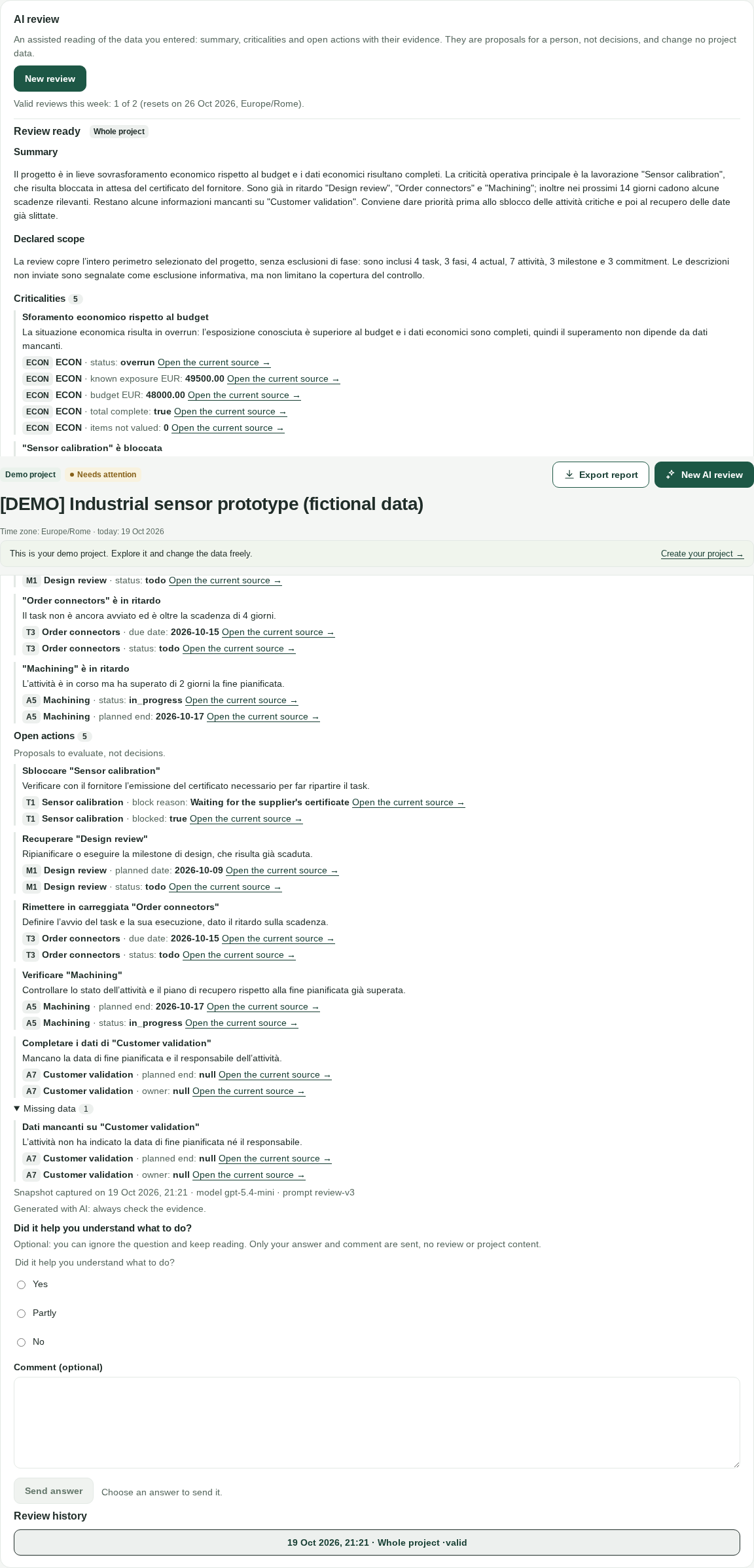
Every review is a dated snapshot. If the data changes afterwards, the banner “Data changed after this review” shows the captured values, the capture time and the button “Request a new review”; if the analysed phase was deleted, the variant is “The analysed phase no longer exists.” At the end of the report, the meta line declares “Snapshot captured on {when} · model {model} · prompt {prompt}”.
Summary: the picture in a few lines.
“Declared scope”: what the review says it read.
Criticalities, with a count: each has a title, a text and its evidence.
Open actions, with a count and the caption “Proposals to evaluate, not decisions.”
“Missing data”: empty fields that make the picture incomplete; above 3 items the section starts collapsed.
“Uncertainty”, when present: the points the reading is not sure about.
Each piece of evidence is a row with a ref chip, label, field and value, plus “Open the current source →” to the Plan, the Kanban or the Costs; if the source was deleted: “Source deleted: the snapshot value is kept.”
At the close: “Generated with AI: always check the evidence.”
The review history lists every request as “{date} · whole/phase · status”, with status running, valid, not produced or uncertain: one click opens that past review. While empty it shows “No review yet.” The data-changed banner applies to old reviews too: a snapshot remains the picture of its moment.
On the project’s first valid review the question “Did it help you understand what to do?” appears, with Yes, Partly and No plus an optional comment up to 2000 characters. Only your answer and comment are sent, never review or project content; the receipt shows the recording date. If sending fails you can retry: answer and comment stay in the form. The question applies only to the first valid review of the project: it tells the people who build ControlRoom whether reviews actually help, and it costs you nothing.
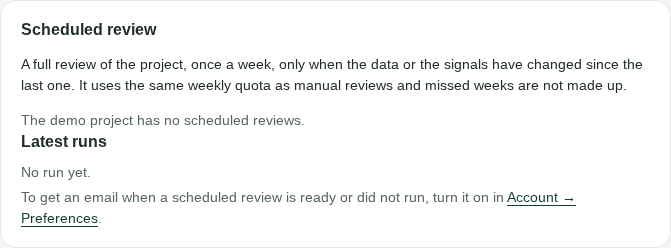
Further down the Overview sits the scheduled review. Its purpose is declared in the panel: “A full review of the project, once a week, only when the data or the signals have changed since the last one. It uses the same weekly quota as manual reviews and missed weeks are not made up.” Tick “Schedule on” — while off, the line below says “The schedule is off: no review will be created” — then pick the day and the hour, from 00:00 to 23:00, in the “Hour (Europe/Rome)” field: the hour is always Europe/Rome, whatever the browser time zone. Press Save: you will see “Saving…” and then “Schedule saved.”, with “Next run: {when}” or “No run planned.”
The scheduled review in the demo project (fictional data): day, hour and latest runs.
If you archive the project, the schedule is suspended but keeps its configuration: “The project is archived: the schedule is suspended and keeps its configuration.” On reactivation it does not restart by itself: “The project was reactivated but the schedule does not restart by itself: you have to resume it explicitly.” The resume button opens a confirmation dialog: “The next run will be the first future occurrence of the saved day and hour. No backlog review is created.” The same rule applies when the workspace was suspended. The demo project has no scheduled reviews.
To get an email when a scheduled review is ready or did not run, turn it on in Account → Preferences. The scheduled review panel lives in the Overview; the notifications card on the Home page is covered in the Home chapter.
The “Latest runs” tell the story of every occurrence: in progress, Review ready, Review not produced, Uncertain outcome, Did not run (service not running) or Did not run. A skipped week is always explained:
x_no_news — “No news in the data or the signals since the last review.”
x_quota_exhausted — “Weekly quota used up; not made up.”
x_budget_exhausted — “The platform’s monthly AI budget is used up.”
x_scope_too_large — “The project is too large for a full review: you can request a manual review of one phase.”
x_ai_unavailable — “AI review not available.”
x_review_in_progress — “Another review was in progress.”
x_project_archived — “Project archived.”
x_empty_project — “The project had no data to analyse yet.”
x_context_unstable — “The data was changing while it was read.”
x_interrupted — “Interrupted before a decision.”
x_downtime — “The occurrence came due while the service was not running.”
x_error — “Unexpected error.”
x_other — “See the review for the reason.”
The bell icon at the top collects the scheduled-review notifications. The unread badge caps at “9+”. The “Notifications” panel offers “Mark all as read”, disabled when there are none; opening the panel marks nothing, and clicking one notification marks only that one as read and opens the project cockpit. The count lives on the server and is identical across sessions and devices; the page refreshes it every 60 seconds and every time you return to the tab. If loading fails: “I cannot load the notifications.”, with Retry.
Notifications cover only scheduled reviews, never the manual ones. Each entry shows the kind, the project name (fallback “Project”), the text, the time and the unread styling:
“Scheduled review ready” — “Open the project to read it.”
“Scheduled review not produced” — “No quota used. Open the project for the details.”
“Scheduled review did not run” with the reason: weekly quota used up, monthly AI budget used up, project too large, AI review not available, or other.
The tag “Project archived (read-only).” when the project is archived, or “The project is no longer available.” when it no longer exists.
The review is generated with AI: it can be wrong, and the proposed actions are suggestions for a person, not decisions; it never changes project data. The model does not receive descriptions, but titles travel as they are: keep sensitive data out of the free-text fields. Scheduling uses the same quota as manual reviews and a missed week is not made up.
The project picture as a file: formats, scopes, the free summary, confirmation, quota and recovery.
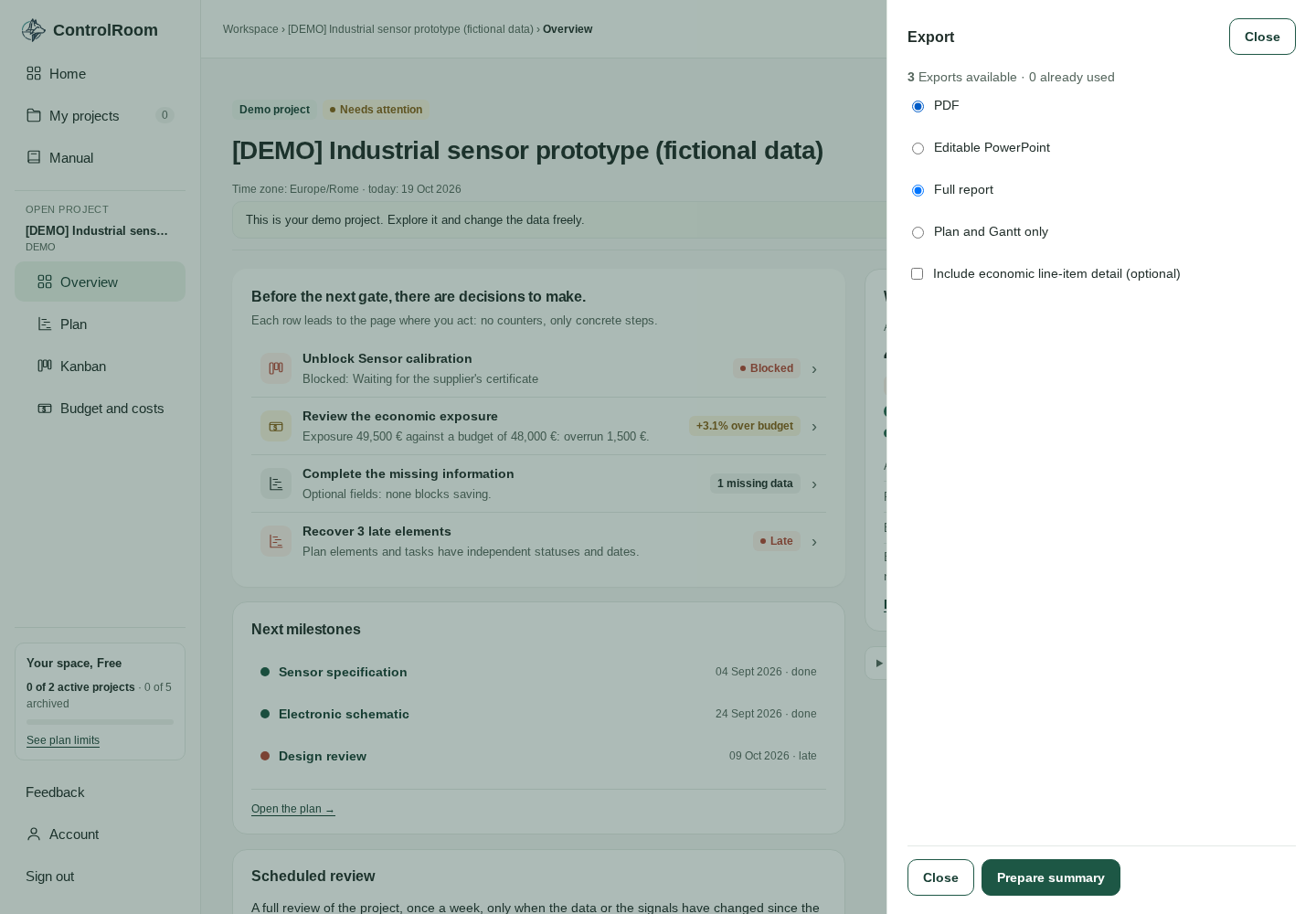
You export from the Overview: the "Export report" button with the export icon sits in the header and opens a right-side drawer, 470 px wide, over the content. It closes with "Close", with Esc or with a click on the backdrop.
The real export drawer of the demo project, opened from the "Export report" button (export icon) in the Overview header.
Choose and prepare. Format: PDF or "Editable PowerPoint" — you can edit the PPTX in PowerPoint after the download. Scope: "Full report" or "Plan and Gantt only"; the "Include economic line-item detail (optional)" checkbox appears only with the full report. Then "Prepare summary": it is free and spends no credit; the drawer shows "Summary ready · Content captured: {date and time}".
Check and confirm. Review the summary and the AI-review note, then "Confirm and download file". The credit is consumed here, at confirmation: before that you can prepare and redo the summary as often as needed.
The banner at the top always tells you where you stand: "{n} Exports available · {n} already used · {n} being prepared". "Being prepared" is a credit reserved while an operation is pending. The Free plan includes 3 exports per account, one-time: they never renew. With no credits the drawer says "No credits are available. You can still prepare the summary without using a credit." and the confirm stays disabled.
Under the summary a note tells you whether the AI review is inside the file. Either you see "The AI review is included and aligned to this snapshot.", or the reason it is out:
"AI excluded: the Plan and Gantt scope does not include the review."
"AI not included: the available review is in another language."
"AI not included: the reference day changed after the review."
"AI not included: data changed after the review."
"AI not included: the reviewed scope is no longer available."
If the project data changes between the summary and the confirmation, the confirmation is refused: "Data changed: prepare and confirm the updated content again." There is never a silent export of stale data. The file is generated in the interface language: an Italian interface produces an Italian report.
On confirmation the drawer shows "Preparing download…" and then "The file was sent by the server. Saving to the device depends on the browser.": the browser saves the file on the device, the app cannot guarantee it on its behalf.
If the download outcome is uncertain — a closed browser, a dropped network — the drawer shows "Check status" and "Retry download". Both work on the same operation with reads only: no second credit and never a surprise new file. The possible messages:
"The previous delivery was interrupted": the server did not finish sending; "Retry download" fetches the same file again.
"The operation is still in progress on the server": rendering is not done; try again shortly.
"The recovery window has expired" or "This export can no longer be delivered": the operation is closed; a new file needs a newly prepared summary, with a credit.
If the shown quota is out of date — for example after a successful delivery — the drawer shows "Quota needs updating" with "Refresh quota": a single read that never creates operations or spends credits.
After the download the file is yours: you keep it, share it and present it wherever you want. Today the app keeps no archive of reports to browse: the up-to-date picture lives in the project, not in a file list. If you need the snapshot of a given moment again, export again — and every export counts toward the limit of 3.
Reports contain the project's real data: share them only with the people who should see them. The PPTX is not a live copy of the project: if the data changes in the app, the downloaded file stays as it was.
The four areas of the Account page: access, preferences, tutorial and the data lifecycle.
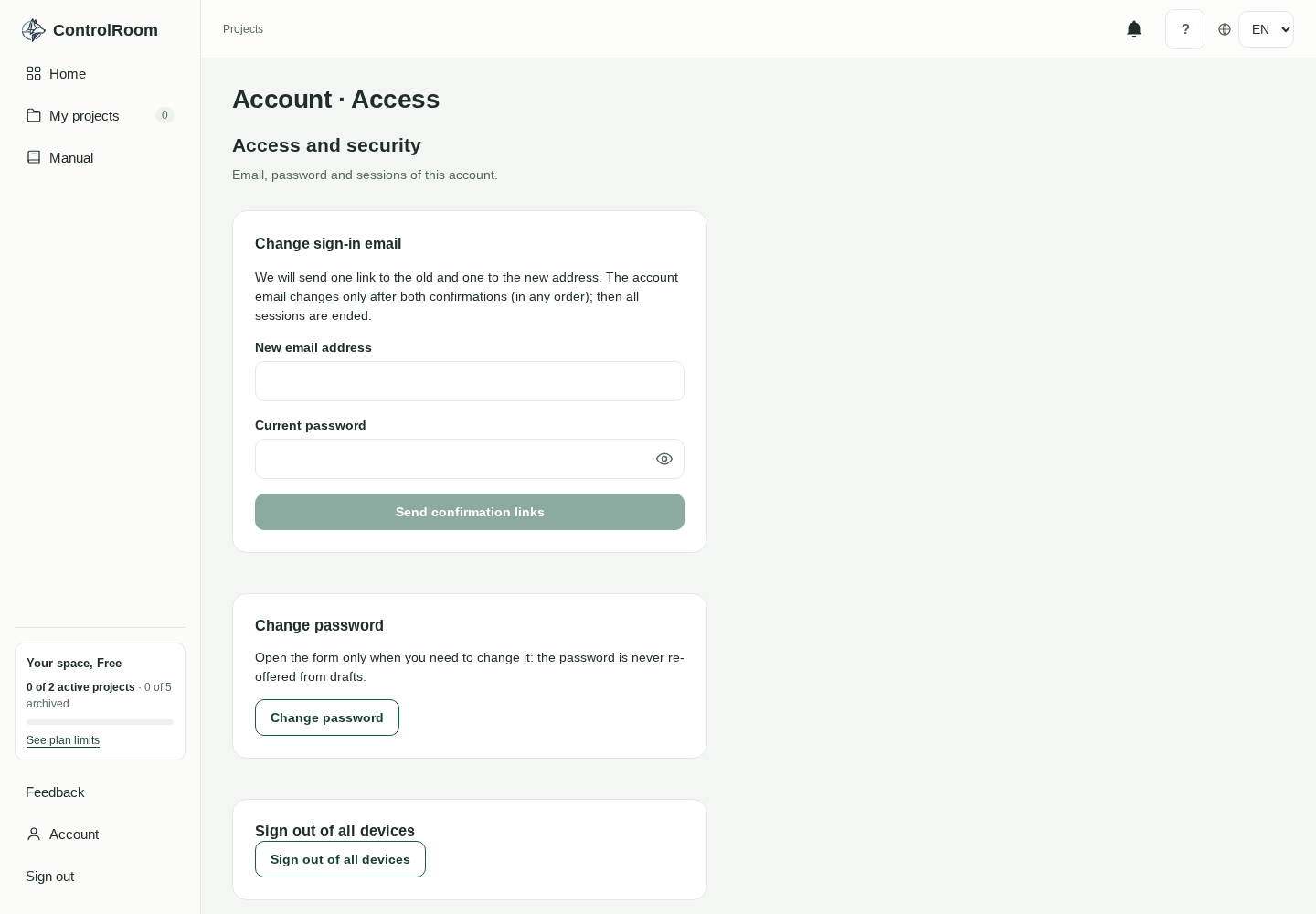
The page is called “Account · Access” and opens from the rail, under Account. It is split into four groups, in this order: “Access and security”, “Preferences”, “Tutorial”, “Data and privacy”. The Data and privacy area says so: account deletion sits at the end of this area.
The Account page of the demo project: the four groups, with account deletion at the bottom of the Data and privacy area.
In “Access and security” you manage the three things that decide who can use your account: the sign-in email, the password and the open sessions.
Under “Change sign-in email” enter the new address and your current password, then “Send confirmation links”.
Two single-use links arrive, with an expiry: one at the old address, one at the new.
Confirm both, in any order: until both are confirmed, your sign-in email stays the same.
After both confirmations, all sessions end: sign in again with the new address.
The /confirm-email-change page tells the story: “Confirmation recorded” with “The other address still has to confirm…”, or “Email changed”, or “The link is invalid, expired or already used”. A wrong password, too many requests or a failed send never empties the form: your text stays where you typed it.
The “Change password” card carries the note “Open the form only when you need to change it: the password is never re-offered from drafts”. The button opens a modal with current, new and confirm fields: the hint recalls the 12-character minimum and a mismatch is flagged at once.
If you close the modal with typed fields, the guard “Discard the changes?” warns you (“The entered fields will be lost.”) and offers “Keep editing” or “Discard changes”. On success all sessions end and the sign-in page shows “Password changed. Sign in again.”.
“Sign out of all devices” asks for the inline confirmation first: “End all sessions, including this one?” with Cancel and Confirm. Confirming ends every session — including the current one — and the tab drafts are lost.
The Preferences card says so: “They only concern your account.” The “Language of scheduled reviews” selector (Italiano or English) decides the language of your scheduled reviews: it follows the topbar IT/EN switch and the last saved language wins. It is not the interface language.
The “Email me when a scheduled review is ready or did not run” toggle stays off until you turn it on. The email contains neither the project name nor the review text: it only says that there is news and links to a page that requires you to sign in. If delivery is not configured, the card says so: “Email delivery is not configured in this environment: the alert stays in the application (bell) only.”.
Every change saves at once: you see “Preferences saved.”, or, if the save fails, the preference is unchanged. There is no Save button to press at the end.
The Tutorial card shows the state of the guide: “Tutorial skipped”, “Tutorial in progress”, “Tutorial completed”, or “The tutorial starts with your first real project.” if you have not started it yet. If the tutorial project no longer exists, the card says so: “The tutorial project is no longer available: choose an active project or create one within the quota.”
“Restart tutorial” starts over with the help “Restarts the guide: data, quotas and history do not change and nothing is created automatically”. When needed, pick from the “Choose the active project for the tutorial” menu: the restart stays disabled until you choose.
The “You have no active project: create one (within the quota) or reactivate an archived one.” note covers the case with no projects. Restarting lands you in the chosen cockpit.
The “Data retention” card shows two clocks: the workspace enters the retention lifecycle after 6 months without qualifying activity, the account after 12. Each clock reports “Last qualifying activity recorded: {last}. Policy date: {ends}.” and can show the not-started, excluded or unavailable states.
Warnings arrive in time: “The workspace enters the retention lifecycle in about 60 days” or “in about 30 days”, for the account “in about 30 days” or “in about 7 days”, always with the exact due date.
The safety note closes the card: “Destructive actions stay disabled until backup, isolated restore and the deletion ledger have been qualified.” If the read fails, there is an error message with Retry.
What counts as qualifying activity? Opening and working in the workspace pages (projects, plan, kanban, costs, overview) advances the workspace clock; opening the Account page advances the account clock.
The background probes (workspace status every 30 seconds, notifications, update check) and reading the manual do not count: actually using the app is what keeps your data alive.
At the bottom of the Data and privacy area sits “Request account deletion”: you need the current password and the mandatory checkbox “I understand that I will immediately lose access…”. Confirming disables access at once and ends every session; physical deletion starts only once the safeguards are qualified.
The receipt lives at /deletion-requested: it shows the status — recorded, awaiting governance, in progress, completed with the date — and the “Refresh status” button. If you need help, the page points to the access recovery channel.
In another browser the receipt is not available: “To protect privacy, status is not shown without the local receipt.”
If the workspace is suspended, in its place you find the “Workspace suspended” card: “You can still consult your account, but the workspace is read-only until a platform administrator reactivates it.” The suspension reason is shown and the link to Account remains: the account pages keep working.
If you cannot sign in even with a password reset, the access recovery channel is reachable from sign-in, forgot password and reset (see the Getting started chapter).
Fill in the contact email and the message (up to 2,000 characters, with a counter) and keep the reference: “Keep this reference.” Requests are rate limited and the existence of an account is never confirmed. Never enter passwords, tokens or confidential project details.
ControlRoom Free is an individual account: there are no multiple users and no sharing, and handing a project over goes through the exported report. Deletion is deliberately not instant: physical deletion starts only with backup, isolated restore and the deletion ledger qualified. And the retention clocks advance with your real use of the app, not with the automatic checks of the system.
Marta’s typical week, from the first plan to the scheduled review arriving in the bell.
The project is "Website redesign": 15,000 € budget, three phases — Discovery, Design, Development — and one person governing it, Marta. Every number that appears below was entered by her; none arrives on its own.
Monday — Plan. Marta creates the "Website redesign" project from the Projects page, then glances at Home: the review quota shows 0 of 2 valid for this week, notifications are empty, the last activity is today.
She opens the Plan, creates the three phases and, from the drawer, adds the activities with planned dates: "Wireframes" by the 3rd, "Visual design" by the 10th, the "Design delivery" milestone on the 17th. Changes stay a draft until she presses Save; then "Fit plan" frames the whole sequence in the Gantt.
Still on Monday, in the Overview she enables the review schedule: every Wednesday at 09:00 one automatic full review, run only if the data or the signals changed. From now on Wednesday has a fixed appointment.
Tuesday — Operate. In the Kanban Marta creates the week's tasks from the drawer: "Collect the content" (In progress), "Approve the colours" (In review), each with an owner and executors.
The task "Set up hosting" is stuck: she blocks it with the mandatory reason "Waiting for the hosting quote". The card shows the "Blocked" badge and the block becomes a decision in the Overview.
In Budget and costs she sets the budget inline: 15,000 €. She records the 9,000 € commitment with the design agency, then uses "Register actual" to link the 3,000 € advance to that commitment: the remaining drops to 6,000 €.
She also records the 240 € hosting actual: an item with date, category and supplier, like any other.
The demo board: tasks move between the columns.
Wednesday — Decide. The Overview lists the project's decisions: the blocked task with its reason, two plan activities without an owner, and the budget card — 3,240 € of actuals, 6,000 € of committed remaining, 9,240 € exposure, margin down to 5,760 €.
Marta opens each row and acts: she assigns the owners to the two plan activities.
Meanwhile the hosting quote arrives: she opens the blocked task and picks "Unblock and complete…". The task becomes Completed and the block reason stays in the history.
The demo Overview: signals become decisions.
Thursday — Verify. From the Overview Marta requests an AI review of the "Design" phase only: before confirming she sees what will be analysed and what stays out. The weekly quota moves to 1 of 2 valid.
The review is a dated snapshot: it flags that the "Design delivery" milestone's date is unreliable. Marta opens the evidence, fixes the date in the Plan and saves.
She ends by answering the feedback question "Did it help you understand what to do?".
Friday — Share. From the Overview Marta picks "Export report" and the PPTX format: the flow has two steps.
First "Prepare summary", free of charge: the content is captured from the project. Then she checks that "Summary ready" appears and presses "Confirm and download file".
The download spends 1 of the account's 3 exports, one-time. The downloaded file is yours; the app keeps no archive of reports to browse.
The following week. On Wednesday at 09:00 the bell in the topbar shows "Scheduled review ready": one click opens the cockpit with the review.
If a week brings no news, the scheduled review does not run and the notification explains it: "Not run · No news in the data or the signals". Missed weeks are not made up.
This is the value proposition in one week: the plan promises, the Kanban operates, the costs expose, the Overview decides, the review verifies and the export shares. No step is mandatory and no data is asked twice: each section uses what you already entered.
Start small: one real project, one phase, three activities, one budget.
Try the surfaces on the demo, which takes no project slots, before touching your own data.
Enable the scheduled review from day one: Wednesday at 09:00 becomes your fixed appointment.
Honest limits: individual account — no multi-user collaboration, no integrations, no SLA. Handover happens through the export (PDF or PPTX) or by copying the project structure, which does not carry costs, owners or actual dates. The 3 exports per account are one-time, they do not renew. For problems and suggestions there is "Feedback" in the rail.
This manual describes the live Free plan. The declared limits (2 active projects, 5 archived, a demo, 2 AI reviews per week, 3 exports) also apply inside the app: open ControlRoom.